

Before designing your resume, see what happens when the ATS tries to read tables and columns.
Key takeaways
- Avoid Tables and Columns: Most ATS parsers read linearly (left to right). Using grids or side-by-side columns causes text-layer scrambling, which turns your information into unreadable “word salad.”
- Stick to Single-Column Layouts: A clean, top-to-bottom flow ensures the software correctly identifies your contact info, skills, and work history without skipping sections.
- Simplify Skill Lists: Instead of using a table to organize skills, use vertical bars (|), bullet points (•), or commas to keep your qualifications readable for the parser.
- Use “Umbrella” Formatting for Promotions: When listing multiple roles at one company, list the company name once at the top to ensure the ATS attributes all roles to the correct employer.
- Minimize Design Elements: Avoid graphics, text boxes, and non-standard fonts. While these look good to humans, they often cause catastrophic data collisions in a digital parser.
- Verify with a Resume Scanner: Use scanner to test your resume. It reveals exactly how a machine “sees” your data and checks if your formatting is hiding your keywords.
You spend hours perfecting your resume layout. Two columns, maybe a table to organize your skills, and just the right amount of design to make it pop.
A side-by-side style might look visually stunning to a human reader, but to a parsing algorithm in an applicant tracking system (ATS), it is a catastrophic data collision.
When you use ATS tables and columns to organize your skills or multi-role tenure, the software reads straight across the page, mashing unrelated sentences together into an unreadable block of gibberish.
Here is the technical breakdown of why resume grids, tables, and columns fail, and the three parser-safe layout methods you should use instead.
The technical reason tables break ats parsers
The core issue lies in how Applicant Tracking Systems (ATS) process data. Most parsers are designed to read a document as a continuous, linear stream of text—moving strictly from left to right and top to bottom, just like a human would.
When you introduce a table, you are asking the software to understand a two-dimensional grid. And instead of reading all the content within “Cell A” before moving to “Cell B,” the parser often slices through the table horizontally across the entire page.
This is often referred to as text-layer scrambling.
Text-layer scrambling explained
Text-layer scrambling is a technical phenomenon that occurs when a PDF’s visual layout doesn’t match its underlying data structure. For a job seeker, this is the invisible killer of a resume.
When you’re creating a resume in a design tool like Canva or Adobe Illustrator, your resume is being structured in layers, rather than a linear, top-to-bottom reading order. When the file is transformed to plain text, the content will appear out of order or missing, leading to incorrect parsing.
So, while a human sees a perfectly organized document, an ATS sees a “word salad” because it reads the text layer based on the order the code was written, not the way it appears on the screen.
This scrambling can effectively hide your qualifications. When the machine can’t find the logical connection between your experience and your skills due to a fragmented text layer, you’re making one of the worst ATS formatting mistakes that can cost you interviews.
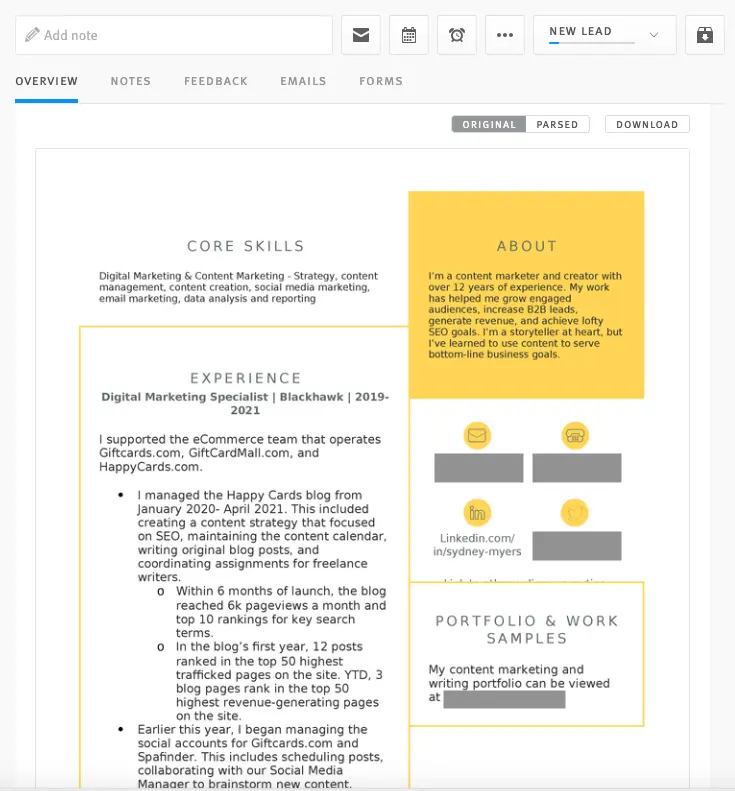
Here’s an example of a design-heavy resume with columns and table.
Here’s how the ATS parsed the information from the above resume.
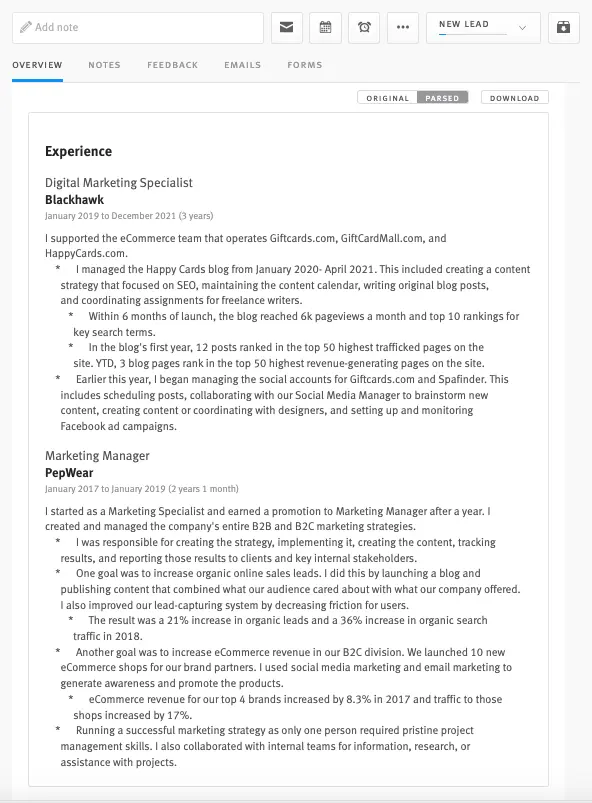
The ATS picked up the work experience section, but ignored everything else. No skills, no “About” section, no contact info, and no links to work samples.
This is why you shouldn’t use tables and columns on your resume.

How to format a “skills” section without ATS tables and columns
You can still include your skills in a list without adding a separate column. The two primary readable methods are the vertical bar method, or the comma-separated list.
How to format a “skills” section without columns
You can still include your skills in a list without adding a separate column. The two primary readable methods are the vertical bar method, or the comma-separated list.
The vertical bar method (|)
Vertical lines are a clean, modern format to list your skills and outline your proficiencies.
For example:
Product Vision | Roadmap Development | Product Lifecycle Management | Market Research | Data Analysis | SQL | Google Analytics | Product Metrics | A/B Testing | User Research
The comma-separated method
Basic commas are a tried and true method to list out your skills, and you don’t need any columns to organize your list.
For example:
Product Vision, Roadmap Development, Product Lifecycle Management, Market Research, Data Analysis, SQL, Google Analytics, Product Metrics, A/B Testing, User Research
The bullet-separated method
Separating your skills with a bullet point (•) is also available to you if you want more than a basic comma. It won’t break the parser and it will still read your skills list.
For example:
Product Vision • Roadmap Development • Product Lifecycle Management • Market Research • Data Analysis • SQL • Google Analytics • Product Metrics • A/B Testing • User Research
Whichever list separation method you use, keep them out of grids, tables, and columns to ensure you have a readable document to submit to the ATS.
Keep your resume simple and uncluttered
“There is no more sure-fire way to get your resume lost in an ATS than to clutter your resume with graphics, tables, and creative fonts. You’ll want to, but don’t do it!”
Jazlyn Unbedacht,Resume Writer & LinkedIn Optimization
NOTE: If you want a more visually designed version of your resume to showcase in interviews or on a portfolio site, that’s fine. But always use the ATS-friendly resume when applying online.
Handling multi-role tenure at one company (without ATS tables or columns)
Many job seekers struggle with showing off their promotions or job changes within a single organization.
Without the crutch of columns or tables, you must rely on font hierarchy and indentation to show the ATS (and the recruiter) that these roles belong under one “umbrella.”
The goal is to list the company name once so the ATS doesn’t think you jumped to a different employer every two years.
The “Umbrella” method
This is the gold standard for linear formatting. It uses a top-down approach that keeps the company name at the top of the “stack,” ensuring the parser attributes all subsequent roles to that specific organization.
For example, it would look like this:
[Company Name] | [Location] | [Total Dates of Tenure]
[Most Recent Job Title] | [Dates for this Role]
- [Bullet point highlighting a key achievement]
- [Bullet point highlighting a key achievement]
[Previous Job Title] | [Dates for this Role]
- [Bullet point highlighting a key achievement]
- [Bullet point highlighting a key achievement]
Not sure if your resume is free of tables or columns?
Even if your resume looks fine to you, it might not look fine to an ATS.
That’s why it’s important to test it.
You can use resume scanner to see exactly how your resume performs. It checks for tables, columns, grids, and abnormal layouts that might keep your resume from showing up in recruiter searches.
Here’s an example of Jobscan’s layout checklist:
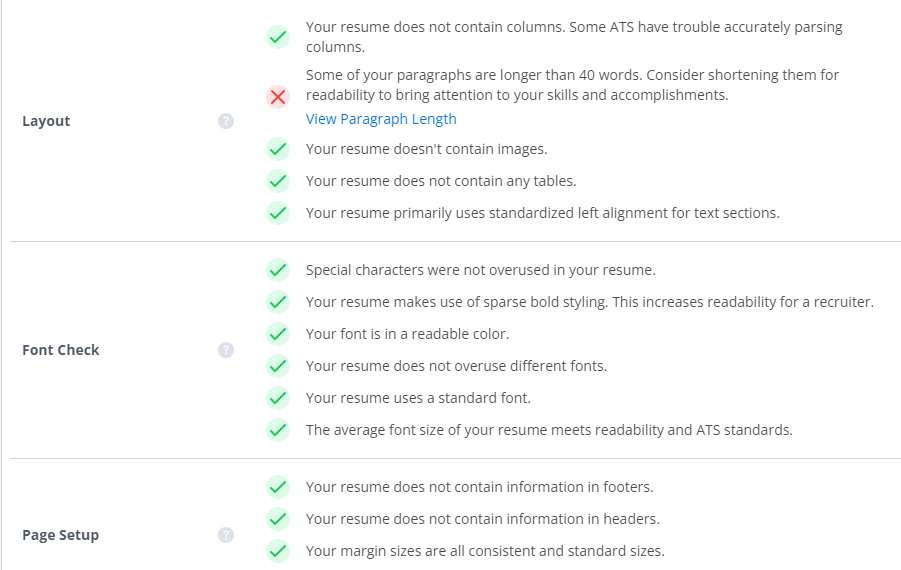
The resume scanner does this by comparing your resume to a target job description, which is where recruiters are taking their keywords from.
It works like this:
- Paste your resume into the scanner.
- Paste the job description into the scanner.
- Click the “Scan” button.
You can try the resume scanner for free here:https://app.jobscan.co/widget/scan-widget